

Microsoft Teams
Microsoft Teams is a conferencing app our Game Masters use for remote sessions. It handles group video, clear voice, and built-in chat, so table talk and rules questions stay in one place. Screen sharing lets the GM show maps, handouts, or a virtual tabletop in the browser. Reactions and raise hand features help you avoid cross-talk and keep the flow of play steady.
For you, setup is simple. The GM sends a meeting link. You can open it in the browser or the free desktop or mobile app. Guests can usually join without a Microsoft account, depending on settings. There is no cost for players to join. It works on most computers and phones. A headset and stable internet give the best experience.
Many of our Game Masters pair Teams with a virtual tabletop for maps and dice. They share screens, drop quick links in chat, and keep audio in Teams for clarity. Curious about other online options? See online play platforms.
How to use Microsoft Teams
Your Game Master will send you a Microsoft Teams meeting link. At game time, click the link and choose Continue on the web or Get the Teams app. The browser option works in current versions of Chrome or Edge. Allow your microphone and camera, then use the pre-join screen to pick your devices and test levels. Enter your name if joining as a guest. If the meeting asks you to sign in, create or sign in with a free Microsoft account. Keep the chat open for links, and use raise hand to cut down cross-talk.


Frequently asked questions
Do I need a Microsoft account or a paid plan to join?
You can usually join a Teams meeting as a guest without a Microsoft account, using the link your Game Master sends. If the meeting asks for sign-in, a free Microsoft account works. Players do not need a paid plan to join a session hosted in Teams.
Which devices and browsers work for playing in Teams?
Join from the free desktop app on Windows or macOS, or the mobile app on iOS or Android. You can also join in a current version of Chrome or Edge without installing software. For the smoothest audio, use a wired connection or strong Wi-Fi.
Do I need a webcam or a headset?
A camera is optional, and many groups play audio-only. A headset or earbuds reduce echo and make speech clearer for everyone. Allow Teams to use your mic, then use the pre-join screen to pick devices and test levels.
Can we use Teams alongside a virtual tabletop or dice tool?
Yes. Keep voice and video in Teams, and open your virtual tabletop or character sheets in the browser. The Game Master can share their screen for maps or rules, and post quick links in chat so everyone can follow.
Booking Form


Sent!

Nat 1, try again!
Please try again or email info@storyforgers.com
Dungeons & Dragons
Forge your own fantasy tale with Dungeons & Dragons. Create a party of bold heroes, outsmart traps, bargain with dragons, and claim treasure in vivid worlds. Think the fellowship spirit of The Lord of the Rings, only you choose the paths, the battles, and the ending.
View system: Dungeons & DragonsCall of Cthulhu
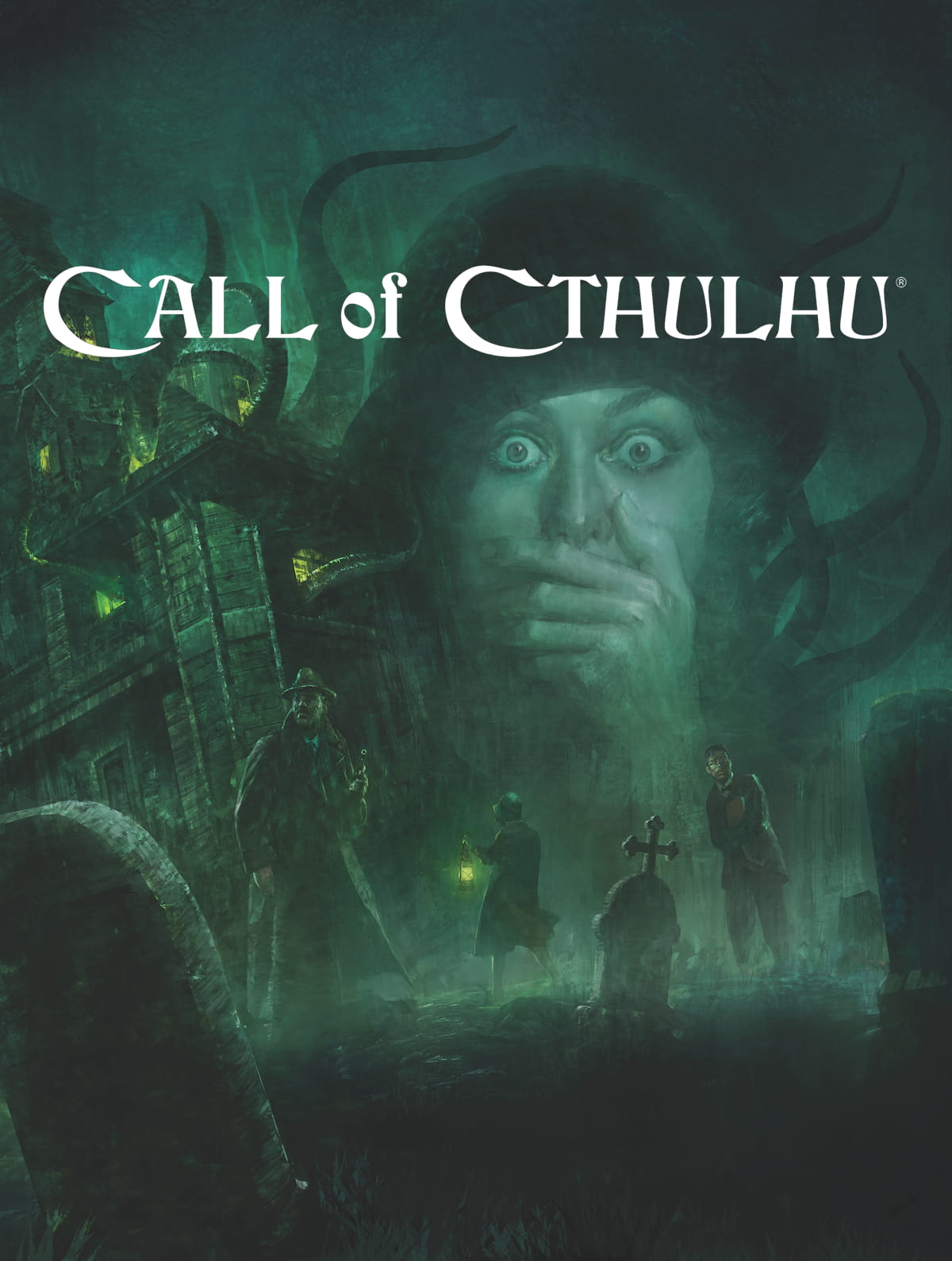
Call of Cthulhu is the classic game of investigative cosmic horror. Play doomed investigators probing occult mysteries and fragile sanity.
View system: Call of CthulhuDaggerheart
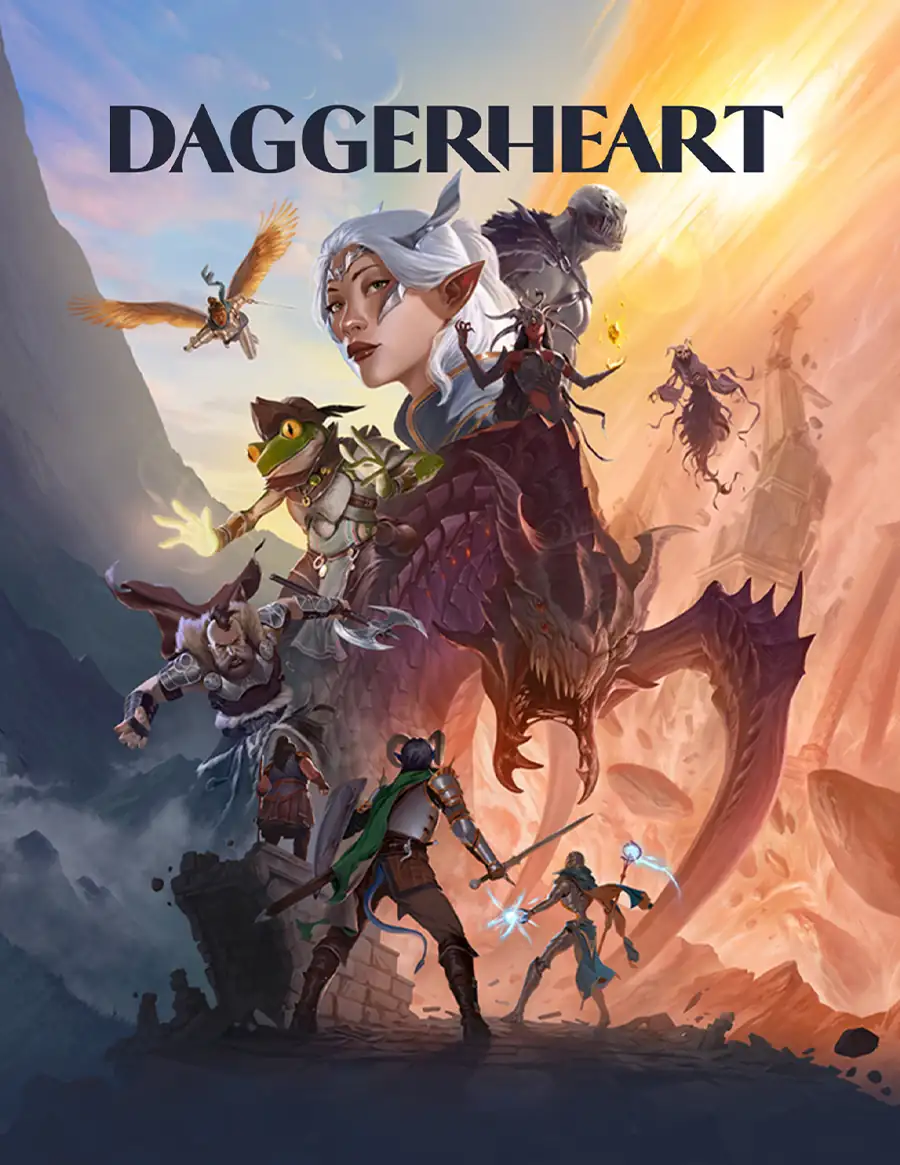
Daggerheart is a high-fantasy RPG where every roll uses Hope and Fear d12s. Big heroics meet meaningful consequences in fast, story-first play.
View system: DaggerheartVampire: The Masquerade
Vampire: The Masquerade is modern-night roleplay about hunger, power and secrecy. Think Interview with the Vampire, but you make the calls. Scheme, seduce and survive as a coterie while a professional Game Master brings a city of dark politics to life.
View system: Vampire: The MasqueradeCyberpunk
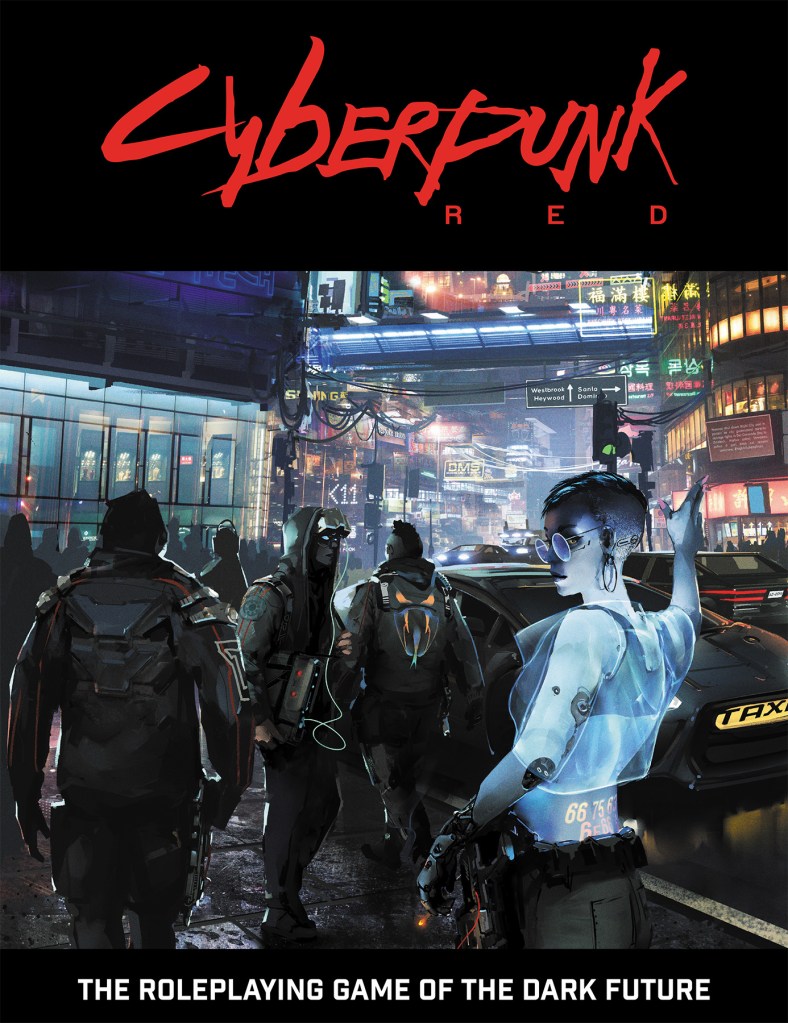
Rule the neon sprawl with Cyberpunk RED, the near-future game of mercs, megacorps and hard choices from R. Talsorian Games. Fast, deadly action, slick tech and tense heists. If you know Cyberpunk 2077, you already feel the grit and style.
View system: CyberpunkLancer
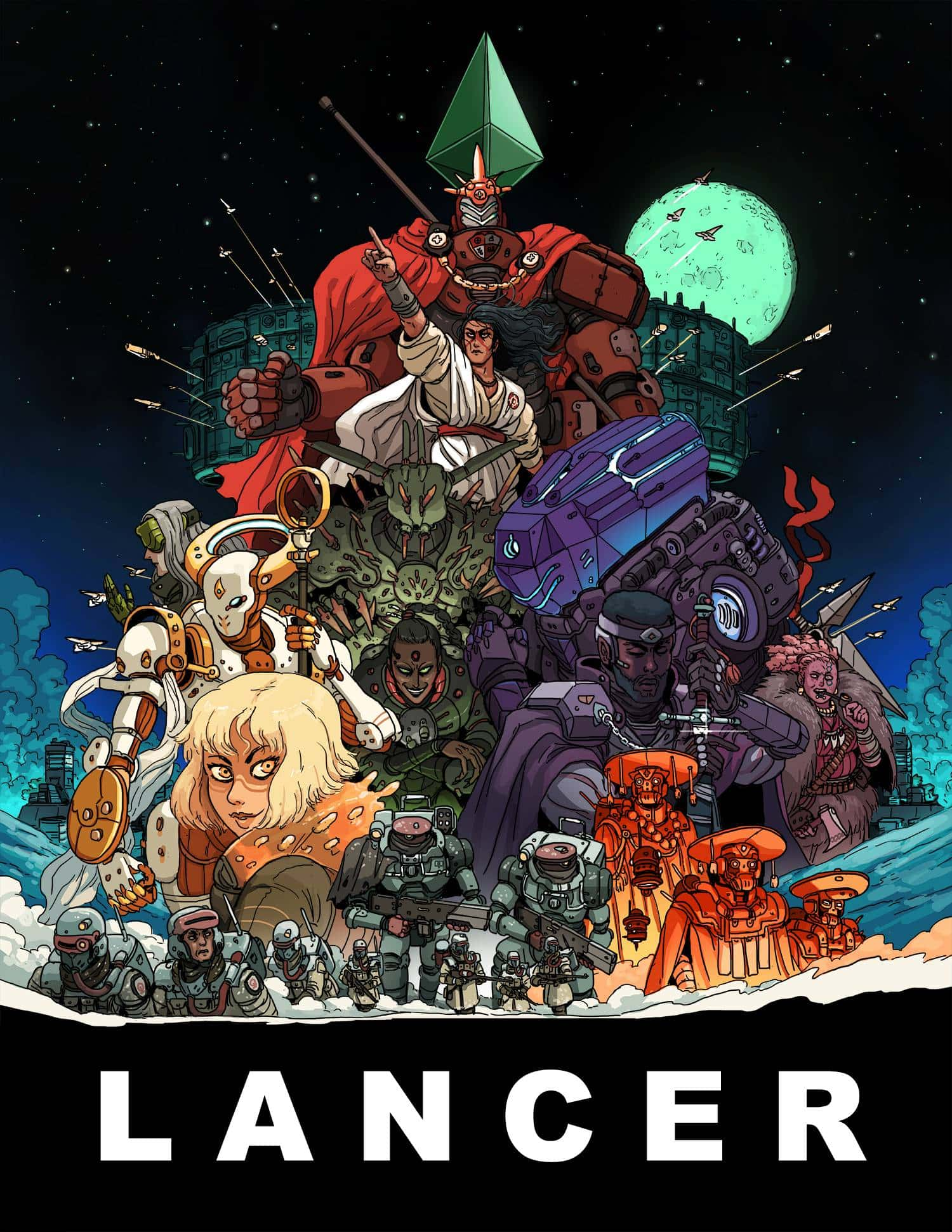
Pilot a custom-built mech in high-stakes missions that blend sharp tactics with character drama. Lancer delivers crunchy battles and sweeping sci-fi about duty, politics, and hope. If you love Gundam, you will feel right at home.
View system: LancerStarfinder
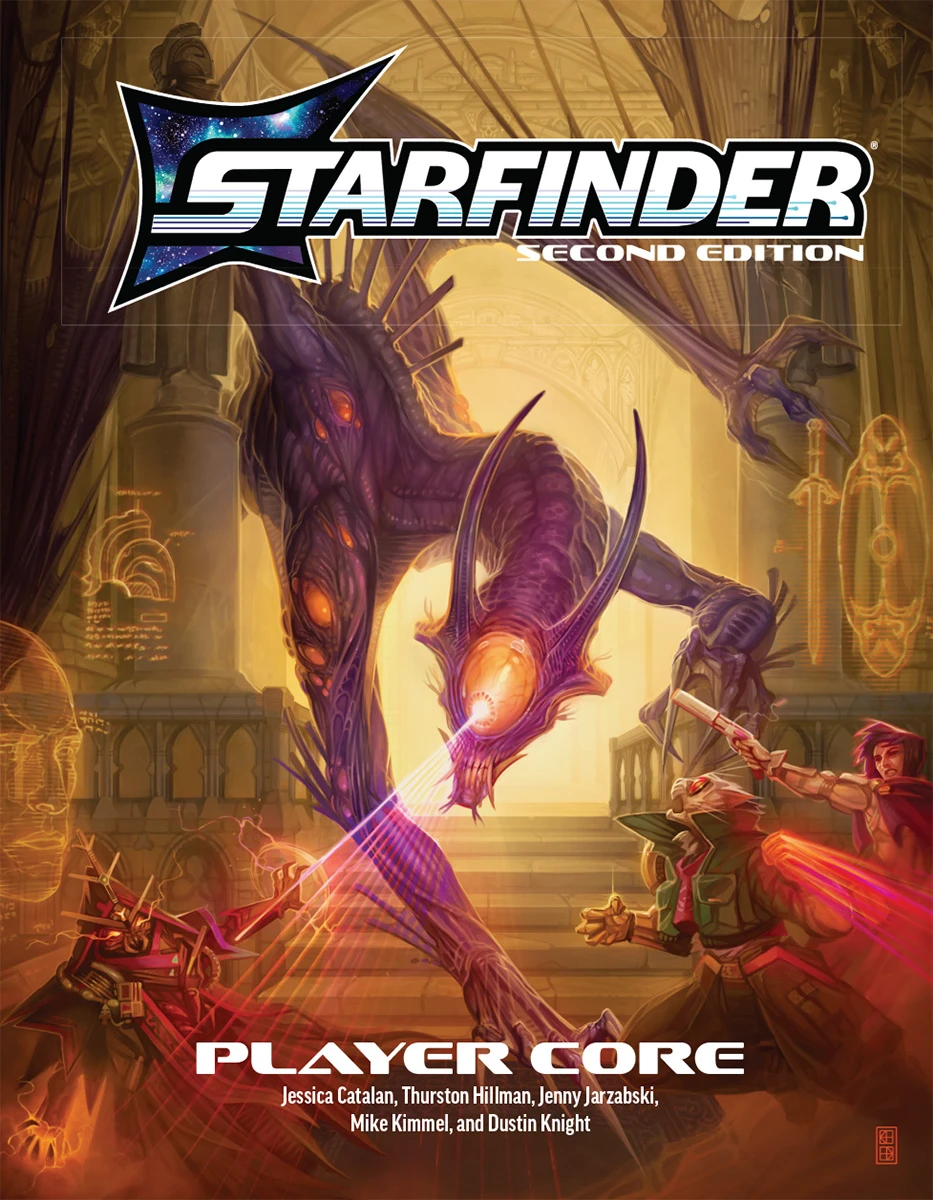
Starfinder is Paizo’s science-fantasy of blaster fights, spell-slinging technomancers, and starship showdowns. Think Mass Effect with magic. Our Game Masters guide you through strange worlds, daring heists, and alien mysteries that reward teamwork and bold choices.
View system: StarfinderWarhammer Fantasy Roleplay
Warhammer Fantasy Roleplay plunges you into the Old World, a grim, disease-ridden land of cults, corruption and hard choices. Think The Witcher, but with black humor and worse odds. Gritty investigations, lethal fights and messy magic, guided by our Game Masters.
View system: Warhammer Fantasy RoleplayALIEN: The Roleplaying Game
Stalk the dark between the stars with ALIEN: The Roleplaying Game, a cinematic survival horror experience. Stress fuels panic and hard choices as you fight to survive. If Ridley Scott's Alien hooked you, this delivers that same cold-sweat dread at the table.
View system: ALIEN: The Roleplaying Game




High Fantasy
Vast kingdoms, ancient magic, and heroes on dangerous quests to save more than a town, maybe the world. Think The Lord of the Rings, where…
View genre: High FantasyDark Fantasy
Gritty magic, frail hope, and choices that stain as monsters wear human faces and the cost of victory cuts deep. Think The Witcher, but the…
View genre: Dark FantasyPirate
Salt spray, creaking decks, and cutlass fights as you chase treasure and rivals across dangerous seas. Swashbuckling adventure like Pirates…
View genre: PirateSteampunk
Victorian grit, brass gadgets, and daring invention. Think Around the World in 80 Days with airships, clockwork automatons, and smokestack…
View genre: SteampunkWhimsical
Playful fantasy where logic takes tea breaks and kindness solves problems. Think Alice in Wonderland, with curious rules, quirky friends…
View genre: WhimsicalAcademy
Campus drama and late-night capers, teachers who test you and rivals who push you. Make friends, join clubs, cram for finals, and decide…
View genre: AcademyMystery
Follow the clues, build timelines, and catch the culprit. Think Knives Out, but you are the detective, piecing together alibis and secrets…
View genre: MysterySurvival
Cold nights, empty packs, and hard choices. Survival tales test grit and teamwork as you ration supplies, outsmart nature, and face human…
View genre: Survivalby Tessa Supernatural
Unseen forces close in. You hunt answers through haunted houses, cursed towns, and sacred rites where ghosts, omens, and miracles blur fear…
View genre: Supernatural


